Most backup advice ends at "set it up and forget it". That is the part that fails. A job that reports "completed" every night can still be copying the wrong folder, writing to the same disk it protects, or keeping no old versions at all. You only find out on the day you need a file back.
This is a short test you can run today. It needs five files, two folders and a terminal.
Backup and sync are not the same thing
Sync keeps two places identical. Delete a file in one, and it disappears from the other, usually within seconds. The same happens when ransomware encrypts your documents: the encrypted versions sync across too.
A backup keeps history. It lets you go back to how a file looked last Tuesday, or to a file you deleted last month. If your only protection is a synced folder, you have a mirror, not a backup. Many consumer sync services also keep deleted files for a limited time, often around 30 days, so check the number for yours.
The 3-2-1 rule, briefly
Photographer Peter Krogh popularised a simple rule that still holds up:
- 3 copies of your data: the original and two backups.
- 2 different kinds of storage, for example your computer and a cloud service, so one type of failure does not take both.
- 1 copy off-site, away from your home or office, so fire, theft or a flood cannot reach it.
The test below checks whether the copies you think you have actually exist and work.
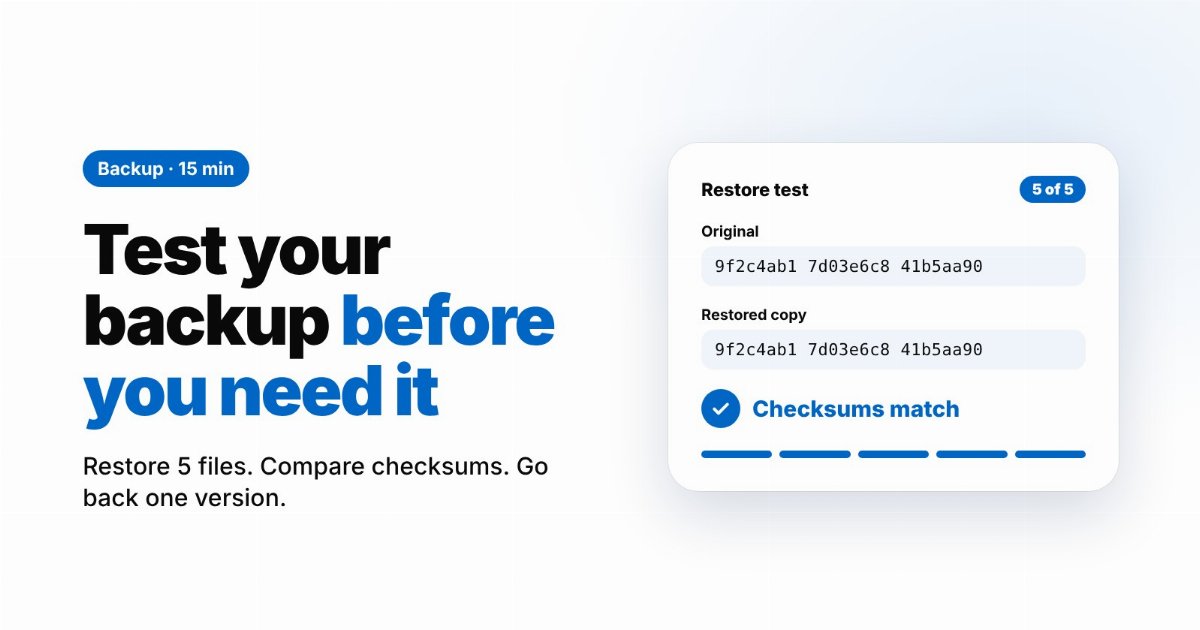
The 15-minute restore test
- Pick five files on purpose (2 minutes). Do not take the newest ones. Choose one document you edited this week, one photo from a few years ago, one large file (a video or archive), one from a deep subfolder, and one with a non-English or unusual name. Backups most often break on large files, long paths and special characters.
- Restore them to a different folder (5 minutes). Never restore over the originals. Use the real restore function, not a copy by hand from the backup folder. If the backup lives in a service, download through its restore screen or app.
- Compare checksums (3 minutes). A file that opens is not always intact. A checksum shows whether every byte matches. Run the command for your system on the original and on the restored file; the two long strings must be identical.
- Open each file (2 minutes). Open the document, play the video for a few seconds, view the photo. Checksums catch corruption; opening catches a wrong password or a missing codec.
- Go back in time once (3 minutes). Change one of the five files, wait for the next backup run (or trigger it), then restore the previous version. If the tool can only give you the latest copy, you do not have versions, and a mistake or ransomware will be copied over your only backup.
Commands for the checksum step
# Windows (PowerShell)
Get-FileHash -Algorithm SHA256 "C:\Docs\report.docx"
# macOS
shasum -a 256 ~/Documents/report.docx
# Linux
sha256sum ~/Documents/report.docx
Run it on the original and on the restored copy. If the strings match, the file came back byte for byte.
Tip: Put a reminder in your calendar for the same day every quarter. A backup that worked in January can be broken by a new laptop, a changed password or a full disk by April.
Six failures this test usually finds
| What you find | Why it matters | Fix |
|---|---|---|
| The backup is on the same disk or computer | One failure, theft or fire removes both copies | Add a second location, ideally off-site |
| A folder was never included | Backup tools back up what you chose, not what you assumed | Review the selected folders, including Desktop and Downloads |
| Only the latest version exists | Overwritten or encrypted files cannot be recovered | Turn on versions; keep them longer than you would notice a problem |
| Restore needs a password you do not have | Encrypted data without the key is unreadable for everyone | Store the key or password separately from the computer |
| Large files failed silently | Size limits and timeouts often skip big files without clear errors | Check the log or the file list for your largest files |
| The backup stays connected all the time | Ransomware can reach any drive or share the computer can write to | Use versioned or offline copies that the infected computer cannot rewrite |
How long should you keep old versions?
Longer than it takes you to notice a problem. Many people notice a deleted or damaged file only weeks later: at tax time, when an old project comes back, or when a client asks for last year's delivery. Thirty days of history is a minimum, not a comfortable number. If you share the backup with a team, one person's mistake may stay unnoticed even longer.
Where this fits on upload.am
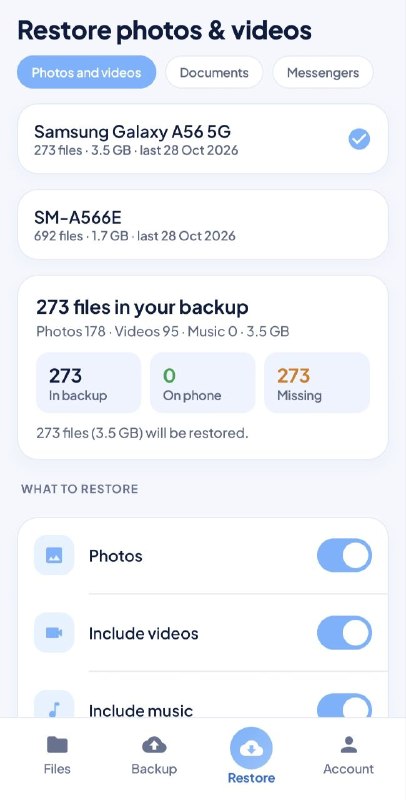
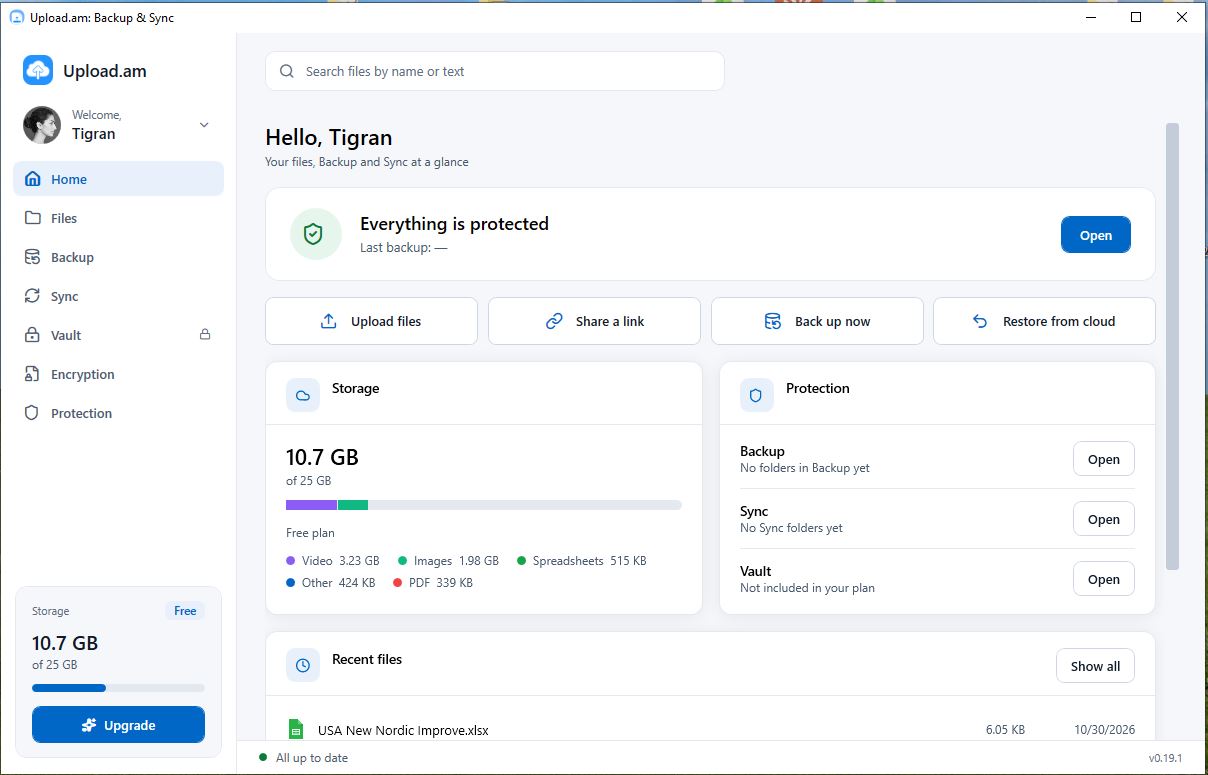
If you use upload.am for backup, the same test applies and the pieces are there to check. The Windows app backs up the folders you choose, and its restore verifies every file by size and checksum. The cabinet keeps versions and a trash with a retention period you can set from 7 days to 10 years under Data protection. "Restore to a date" rolls files back to a chosen moment. Ransomware alerts flag mass overwrites or deletions and offer a one-step restore to before the incident. Still run the five-file test yourself once: it takes 15 minutes and it is the only proof that counts.
The short version
- Sync mirrors mistakes; backup keeps history.
- Keep 3 copies, on 2 kinds of storage, with 1 off-site.
- Restore five varied files to another folder, compare checksums, open them.
- Check that you can recover an older version, not only the latest.
- Repeat every quarter.